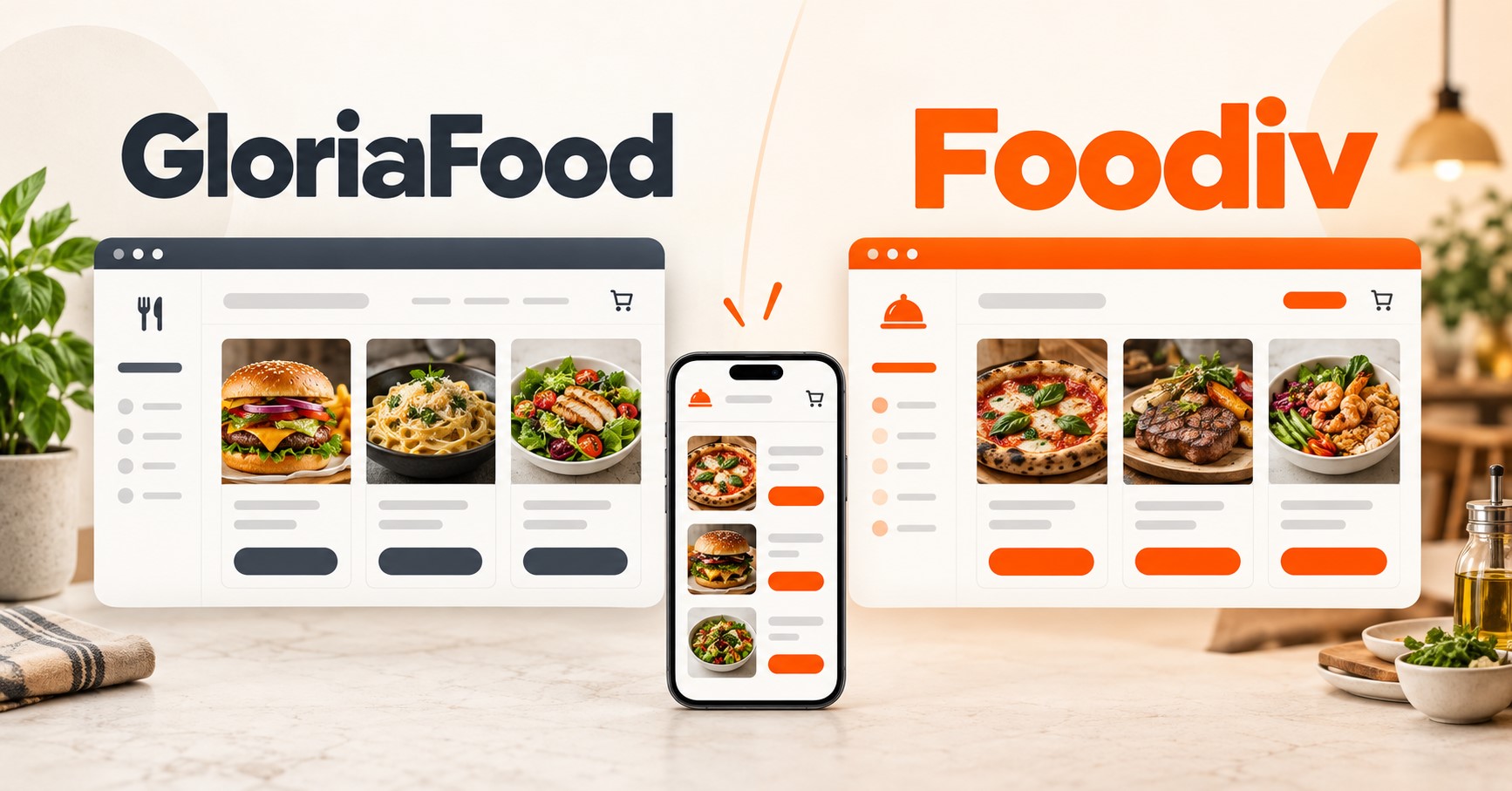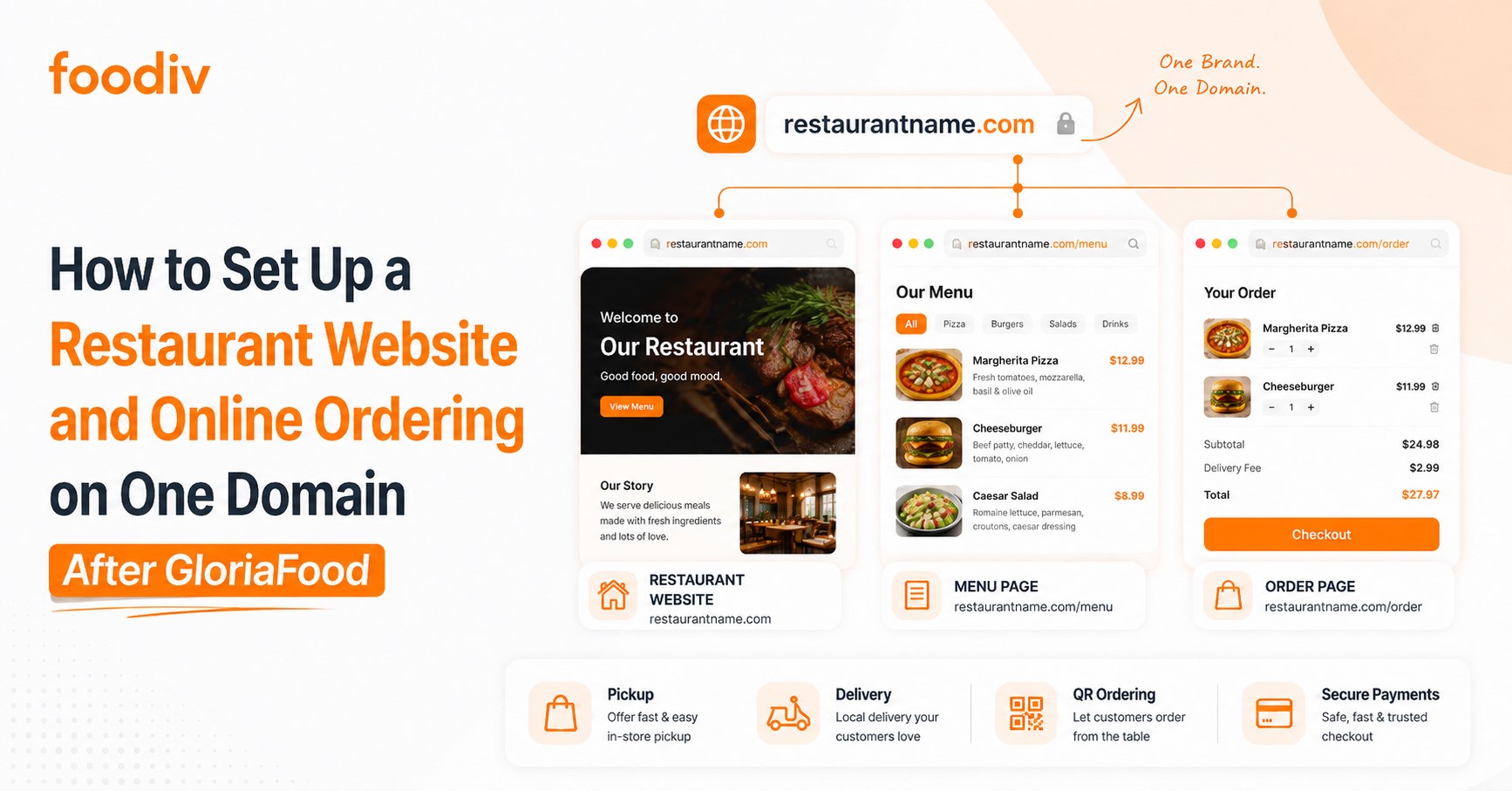
Many restaurants use one website to share their location, opening hours, and story, then send customers to GloriaFood to browse the menu and place an order. That setup may also connect payment methods, pickup rules, delivery zones, QR codes, Google ordering links, and social media buttons.
With GloriaFood scheduled to reach end of life on April 30, 2027, restaurants now need to decide where their website and ordering experience will live next. Here’s the thing: replacing only the order button is not enough. Old links may still send customers to the wrong page, delivery settings may not carry over, and the ordering journey can feel disconnected from the restaurant’s brand.
A restaurant website with built-in online ordering gives you a cleaner setup. Your website, menu, checkout, pickup, and delivery can all work under one branded domain.
This guide explains the available domain options, how to move your menu, build the website, configure ordering, test the full journey, and launch without disrupting orders.
Restaurants can set up a website and online ordering after GloriaFood by choosing a platform that supports both website creation and direct ordering. Connect the existing restaurant domain or register a new one, import the GloriaFood menu, and build essential pages such as Home, Menu, Order Online, About, and Contact. Then configure pickup, delivery, taxes, payments, and order notifications. Test the full ordering journey before launch, and replace every old GloriaFood link and QR code. The ordering page can use a same-domain path or a branded subdomain.
What Does Website and Online Ordering on One Domain Mean?
A restaurant website and online ordering on one domain means customers can browse the website, view the menu, and place an order through the restaurant’s own branded web address. The exact setup can vary, though. Some restaurants use a page within the main domain, while others use a branded subdomain or an embedded ordering tool.
Same-Domain Ordering Path
In this setup, the website and ordering pages sit within the same domain structure:
- Homepage: restaurantname.com
- Menu: restaurantname.com/menu
- Ordering: restaurantname.com/order
Customers stay within the restaurant’s main website from the moment they arrive until they complete the order. This creates a more consistent experience and makes the ordering path easy to understand.
Branded Ordering Subdomain
A restaurant may also use:
- Website: restaurantname.com
- Ordering: order.restaurantname.com
The ordering system runs on a subdomain, but it still carries the restaurant’s name and branding. This is a common option when the ordering platform uses separate hosting but allows the restaurant to connect a custom subdomain.
Embedded Ordering Widget
An embedded widget displays the ordering interface inside a page on the restaurant website. It may look fully connected, but the menu, checkout, payment processing, or order data may still run through another provider.
External Ordering Page
In this setup:
- Website: restaurantname.com
- Ordering: thirdpartyplatform.com/restaurant
Customers leave the restaurant’s domain to order. The setup is often quick, but the change in URL and design can make the experience feel less connected to the restaurant’s brand.
How Is This Different From a Typical GloriaFood Setup?
Many restaurants use GloriaFood as one part of a larger ordering setup. Their website handles basic information, while GloriaFood manages the menu and checkout. Other tools may handle payments, analytics, delivery, or customer communication.
A typical setup may include:
- A separate restaurant website
- A GloriaFood order button
- An external digital menu
- Pickup and delivery settings
- Payment configuration
- QR codes
- Google Business Profile ordering links
- Facebook and Instagram links
Here’s the problem. These parts do not always work as one connected system. Restaurant staff may need to update several tools whenever prices, opening hours, delivery areas, or menu items change.
This setup can create a few common issues:
- Separate updates: The website and ordering menu may need changes in different dashboards.
- Inconsistent experience: Customers may move between different designs, URLs, and checkout pages.
- Split analytics: Website visits may appear in one tool, while menu views and orders appear in another.
- Outdated links: Old GloriaFood links can remain active on Google, social media, QR codes, or printed materials.
- More staff work: Employees may need to manage orders, menus, payments, and notifications across several systems.
Bringing the restaurant website and online ordering into one connected setup can reduce these gaps. But the platform still needs to support the real workflow behind each order, including menu updates, payments, pickup, delivery, kitchen operations, and customer notifications.
How to Set Up a Restaurant Website and Online Ordering After GloriaFood
Moving away from GloriaFood takes more than choosing a new order button. You need to rebuild the full path customers use, from opening your website to receiving their order confirmation. The steps below help you move without missing the settings, links, or tools that keep daily operations running.
Step 1: Audit the Current GloriaFood Setup
Start by documenting everything connected to GloriaFood. Do not limit the audit to your menu.
Review:
- Menu categories and items
- Prices, variants, modifiers, and add-ons
- Pickup and delivery settings
- Taxes, fees, and payment methods
- Order notifications
- Website buttons and menu links
- QR codes
- Google Business Profile links
- Social media links
- Kitchen printers, KDS, and POS connections
- Staff accounts and permissions
This audit gives you a clear migration checklist. It also helps you spot settings that may not transfer automatically.
Step 2: Choose a Platform That Supports Website and Ordering
Look for a platform that can handle both the customer-facing website and the restaurant workflow behind each order.
Compare these areas:
- Website builder
- Custom domain support
- Direct online ordering
- Pickup and delivery
- Payment options
- Menu migration
- Printer, KDS, and POS integrations
- Customer data ownership
- Monthly and per-order costs
- Onboarding and support
Here’s the thing: a good-looking website means little if the ordering system cannot handle your delivery zones, menu modifiers, or peak-hour order volume. Compare the full workflow, not just the homepage design.
Step 3: Decide the Domain Structure
Next, decide where the ordering page will live.
The two common options are:
- restaurantname.com/order
- order.restaurantname.com
A same-domain path keeps the ordering page inside the main website structure. A branded subdomain gives the ordering system its own web address while keeping the restaurant’s name visible.
Your platform’s technical setup may determine which option is available. Both can work well when the design, branding, and navigation feel consistent.
Step 4: Connect or Transfer the Restaurant Domain
Confirm who owns the domain before making any changes. The restaurant should keep the domain registered in an account it controls.
Check:
- Domain ownership
- DNS login access
- Current website hosting
- SSL certificate setup
- Business email records
- Existing subdomains
Avoid transferring the domain unless the move is necessary. In many cases, you only need to update the DNS settings to connect the new website.
Be careful with email records. A careless DNS change can affect business email even when the website works correctly. Keep a copy of the existing DNS records before making updates.
Step 5: Import or Rebuild the Menu
Move the full menu structure, not just the product names and prices.
Include:
- Categories
- Items
- Prices
- Sizes and variants
- Modifier groups
- Required choices
- Optional add-ons
- Descriptions
- Images
- Availability settings
Automated migration can save a lot of time, but review every imported item. Check whether required modifiers still work, prices match, and products appear in the right categories.
A menu can look complete while still containing small errors that affect real orders.
Step 6: Build the Website Pages
Create the pages customers need to understand the restaurant and place an order.
The core pages should include:
- Homepage
- Menu
- Order Online
- About
- Contact
- Location pages
- Pickup and delivery information
- Privacy policy
- Terms and refund information
Place the order button where customers can find it quickly. Include it in the header, homepage, mobile navigation, and menu pages.
Keep the content practical. Customers want to know what you serve, when you are open, where you deliver, and how to order.
Step 7: Configure Pickup and Delivery
Set up each ordering method based on how the restaurant actually operates.
Configure:
- Delivery zones
- ZIP codes or distance limits
- Minimum order values
- Delivery fees
- Free delivery thresholds
- Pickup times
- Preparation times
- Scheduled ordering
- Order limits
- Location-specific settings
Test delivery addresses near the edge of each zone. This helps you catch problems with fees, distance limits, or blocked areas before customers do.
Step 8: Configure Taxes, Fees, Tips, and Payments
Add every charge that affects the final order total.
Review:
- Sales tax
- Service fees
- Packaging fees
- Delivery charges
- Tips
- Online card payments
- Digital wallets
- Cash on pickup
- Cash on delivery
- Refund rules
Place test orders with different totals and payment methods. Make sure the amount shown at checkout matches the amount charged.
Small calculation errors can create customer complaints and accounting problems.
Step 9: Connect Order-Management Tools
The website may look ready, but the restaurant-side workflow also needs to work.
Set up:
Confirm who receives new-order alerts and what happens when staff do not accept an order on time. Every employee should know where orders appear and how to update their status.
Step 10: Test the Complete Ordering Journey
Place real test orders from start to finish.
Test:
- Pickup
- Delivery
- Scheduled ordering
- Online payment
- Cash payment
- Coupon codes
- Required modifiers
- Optional add-ons
- Failed payment
- Out-of-zone address
- Mobile checkout
- Desktop checkout
Do not stop after the confirmation page. Check whether the restaurant receives the order, the kitchen ticket prints, the payment appears, and the customer gets the right notification.
Step 11: Replace All GloriaFood Links and QR Codes
Update every place where customers may still find the old ordering page.
Check:
- Website buttons
- Google Business Profile
- Facebook and Instagram
- Email campaigns
- Online directories
- Printed menus
- Flyers
- Table tents
- Packaging
- Window posters
- Receipts
Scan every replacement QR code before printing it in bulk. One incorrect code can stay in circulation for months.
Step 12: Launch and Monitor the First Live Orders
Launch during a quieter period rather than during your busiest service. Keep the old setup available as a backup until the new system has passed final checks, where possible.
Monitor the first live orders closely. Check:
- Order accuracy
- Payment status
- Printer or KDS delivery
- Staff notifications
- Pickup times
- Delivery fees
- Customer confirmations
The first few orders will show whether the setup works under real conditions. Fix small issues quickly, then review the system again after the first full week of service.
How Can Restaurants Set Up Their Website and Ordering System With Foodiv?
Foodiv is one practical option for restaurants that want to replace GloriaFood with a website and ordering system managed from one platform. It can bring together the restaurant website, custom domain, digital menu, direct online ordering, pickup, delivery, QR ordering, coupons, customer data, reports, and multi-location controls.
The main benefit is simpler management. Instead of updating the website in one place and the ordering system in another, restaurants can manage key parts of the customer journey from one dashboard.
A typical Foodiv setup follows these steps:
- Create a Foodiv account
Add the restaurant details, location information, contact details, and basic business settings.
- Import the GloriaFood menu
Move menu categories, products, variants, modifier groups, and add-ons into Foodiv.
- Review the imported menu
Check every price, category, required modifier, optional add-on, and item description. Menu import saves time, but the restaurant should still verify the details.
- Choose and customize the website
Select a website design and add the restaurant’s branding, photos, opening hours, location, contact information, and order buttons.
- Connect the restaurant domain
Use the existing restaurant domain or connect a new one. Keep domain ownership under the restaurant’s own account.
- Configure pickup and delivery
Add delivery areas, fees, minimum orders, pickup times, preparation times, and scheduled ordering rules.
- Add taxes, fees, and payment methods
Set the correct taxes, service charges, packaging fees, tips, and payment options.
- Set notifications and kitchen workflows
Connect email alerts, order notifications, printers, KDS, or POS tools where supported.
- Test the complete order flow
Place test orders for pickup, delivery, payments, modifiers, coupons, and failed transactions.
- Replace old GloriaFood links and launch
Update the website, Google Business Profile, social pages, QR codes, and printed materials.
Some settings still need manual configuration after menu import. These usually include payments, delivery zones, pickup rules, taxes, opening hours, and notifications. Review each one before accepting live orders.
Final Verdict: What Is the Best Setup After GloriaFood?
The best setup after GloriaFood should connect your website, menu, checkout, pickup, delivery, payments, and order management in one clear system.
A same-domain path such as restaurantname.com/order can work well when the website and ordering system run together. A branded subdomain such as order.restaurantname.com can offer the same professional experience when the ordering platform uses separate hosting. Neither option is automatically better. The right choice depends on the platform, domain setup, integrations, and the way the restaurant handles orders.
Before moving, confirm who controls the domain and which menu data, modifiers, images, customer details, and settings will transfer. Menu migration does not always include payments, taxes, delivery zones, hours, or notifications.
Foodiv is worth comparing for restaurants that want website creation, direct ordering, QR ordering, and GloriaFood menu migration within one platform.